
Generate AI Presentations With Your Own Template: 5 Easy Steps
Generate AI presentations with your own template by turning an existing PowerPoint into a reusable design for every new deck.
Create your custom template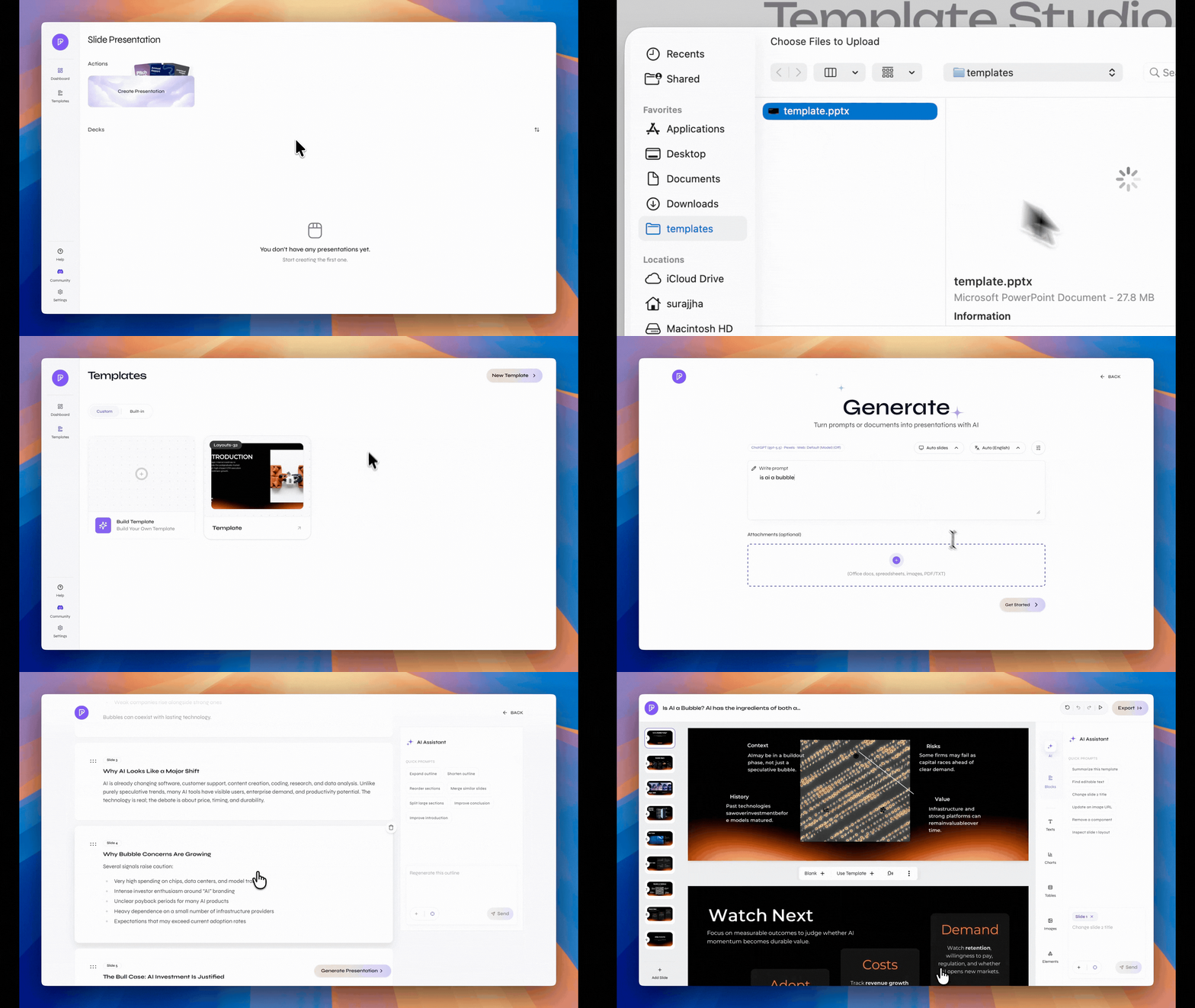
AI solved the blank slide. Branding is still a problem.
Most AI presentation tools can build a decent first draft. Then someone has to replace the colors, fix the fonts, move the logo, and rebuild the slides to match the company template.
That is not much of a shortcut. The deck was generated quickly, but the cleanup still takes time.
The usual workflow
Generate a generic deck, export it, open PowerPoint, and spend another hour making it look like your company.
The Presenton workflow
Upload a branded PPTX once, save it as a reusable template, and generate AI presentations with your own template instead of rebuilding the design.
What stays consistent
Presenton converts your existing PowerPoint slides into reusable layouts. When you generate AI presentations with your own template, the topic can change while the visual system stays familiar.
How to generate AI presentations with your own template
The complete workflow takes five steps. Start with a clean PPTX that includes the layouts you actually want to reuse.
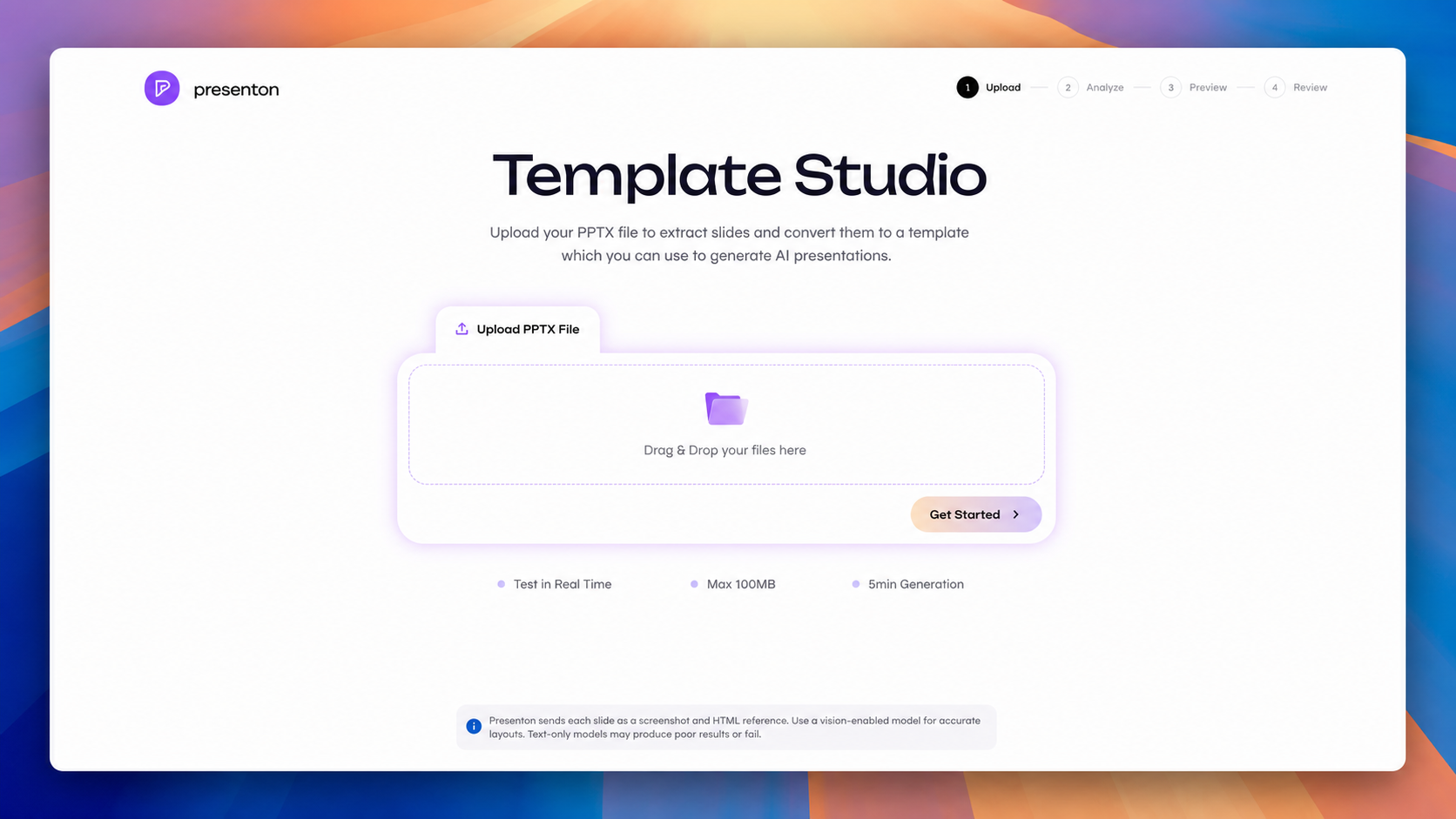
Upload your PowerPoint
Open Template Studio and upload your branded PPTX. Use a clean file with the core slide types your team uses most often.
Before uploading, remove duplicate layouts, old comments, hidden slides, and outdated brand elements.
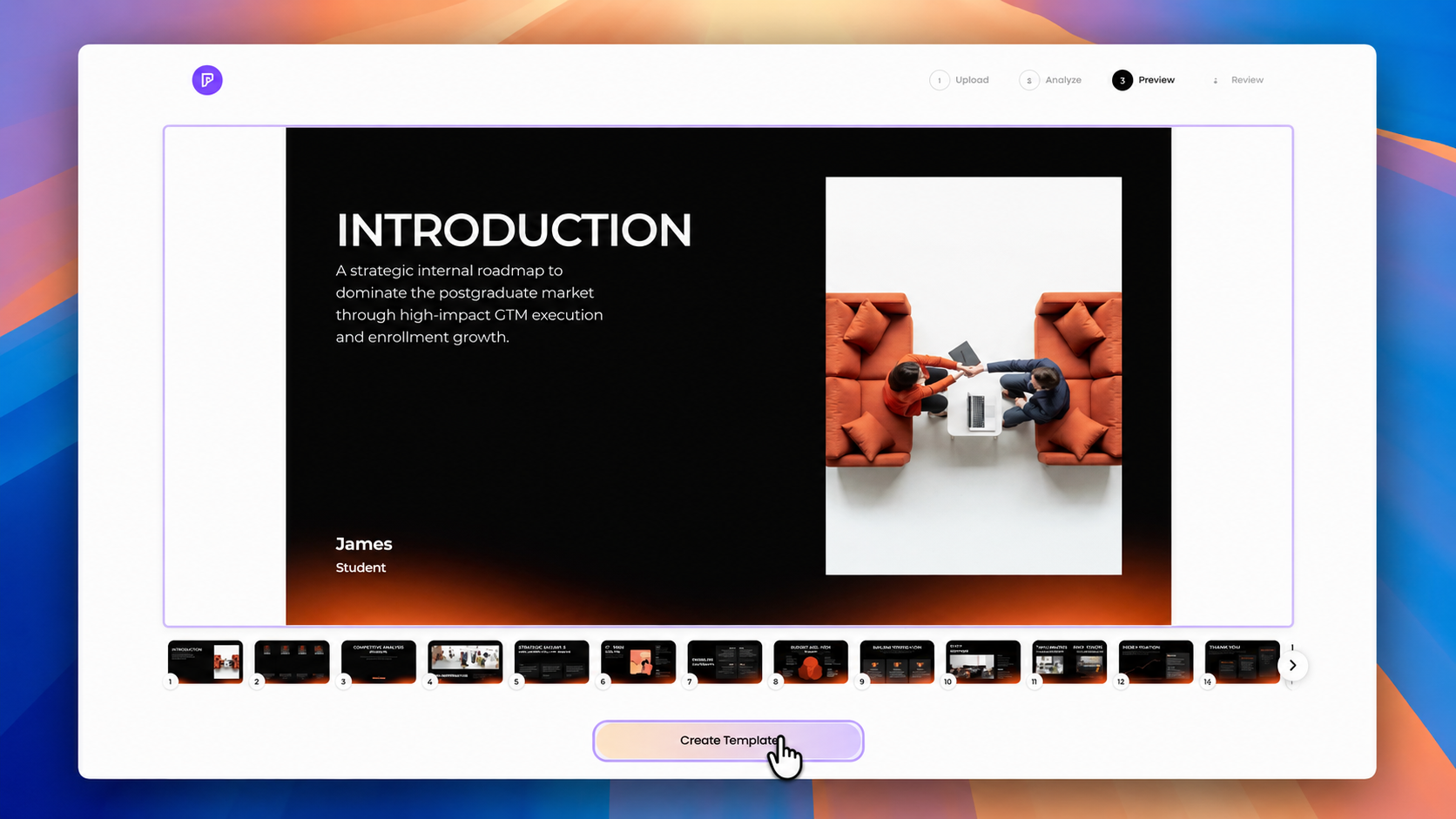
Review and save the template
Check the converted layouts before saving. Make sure titles, body text, images, charts, and tables have enough room for real content.
If a layout will not be useful in future decks, remove it. A smaller set of strong layouts is better than a crowded template.
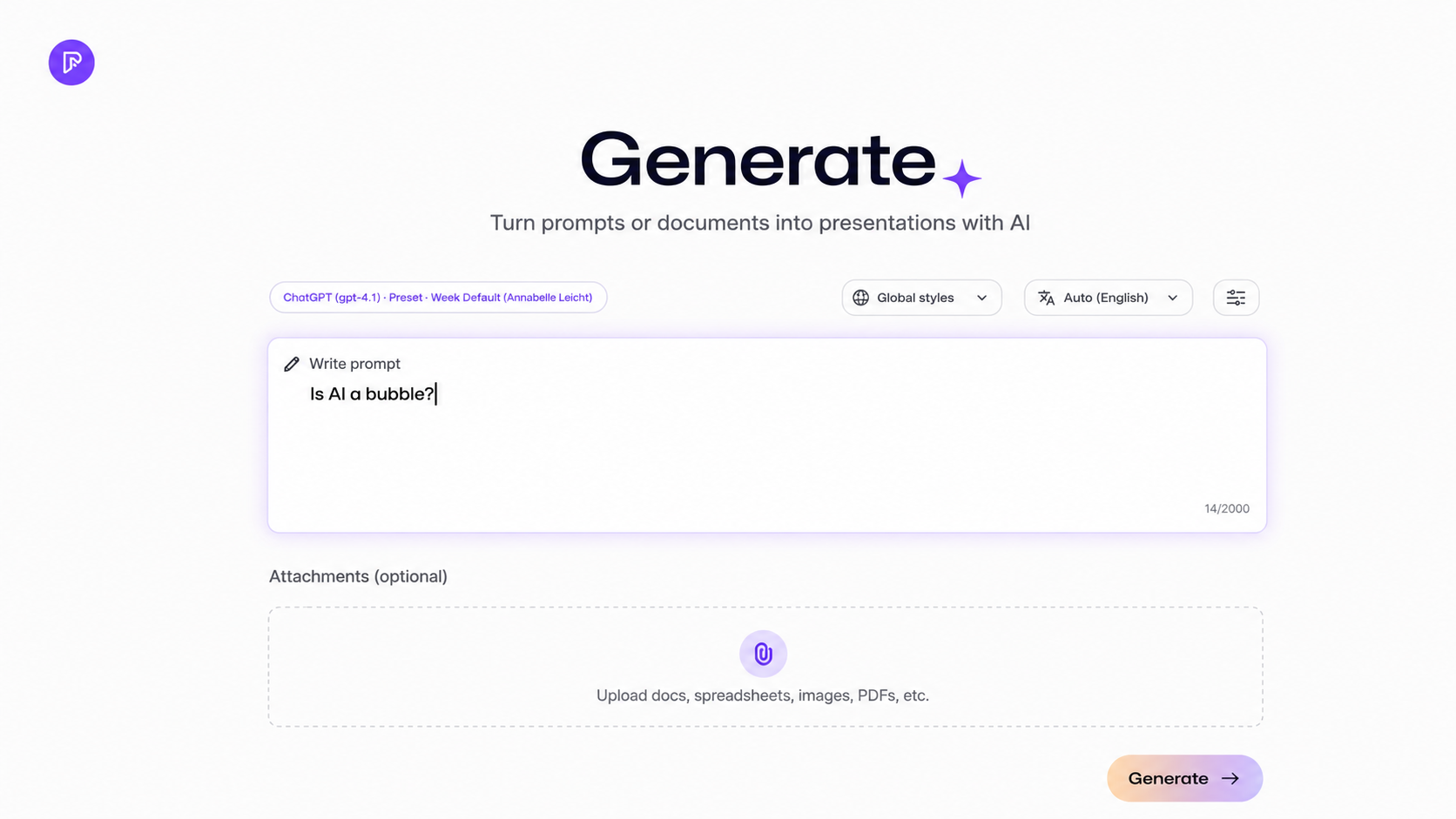
Describe the presentation you need
Start a new presentation and enter the topic, audience, purpose, and key points. You can also add supporting documents when the deck needs to follow specific source material.
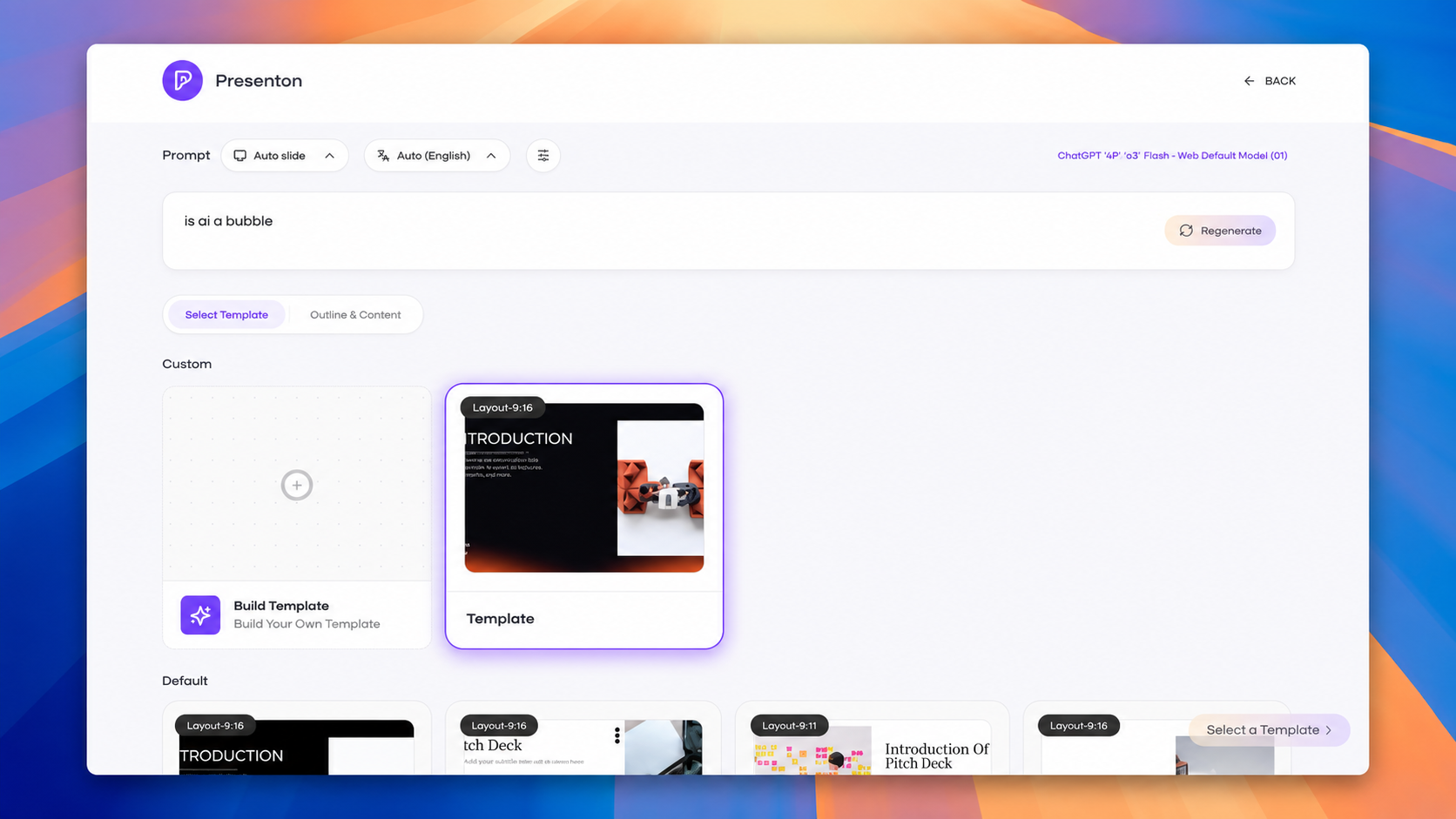
Create a 10-slide presentation answering the question, “Is AI a bubble?” Cover current AI investment trends, company valuations, adoption, revenue potential, warning signs, comparisons with the dot-com bubble, and possible future outcomes. Keep the analysis balanced, concise, and professional.
Select your custom template
Choose the template you created from the Custom section. Presenton will use its layouts while adapting the storyline and content to your new topic.
Review the outline before generating. Changing the order here is faster than rearranging a completed deck.
Review, edit, and export
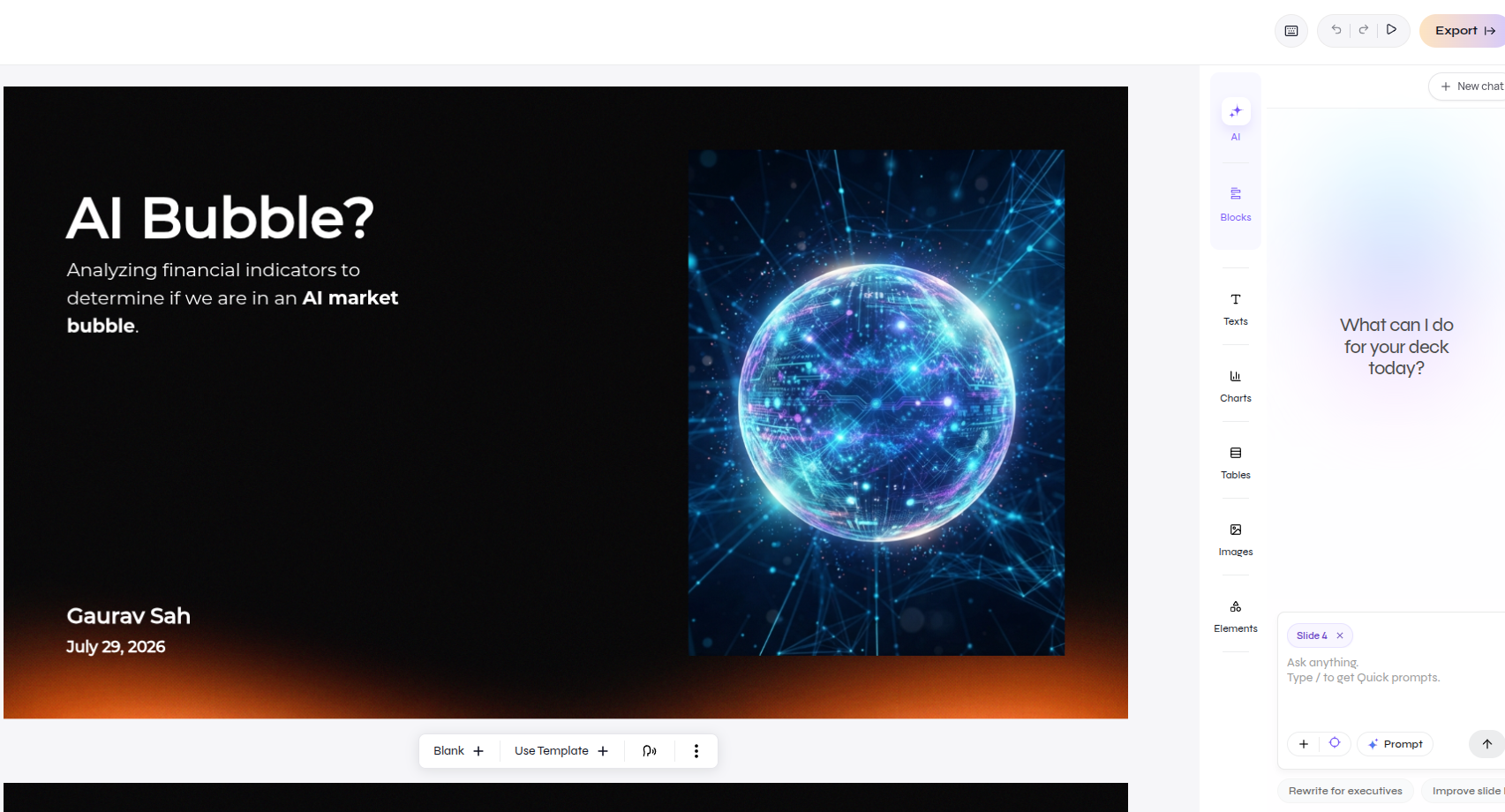
Check the generated deck for accuracy, text overflow, image choices, chart labels, and content density. Make any final edits inside Presenton.
When the presentation is ready, export an editable PPTX for PowerPoint or a PDF for sharing.
Where custom templates help most
Once you can generate AI presentations with your own template, recurring decks become faster to produce without losing visual consistency.
Sales and proposals
Create client-specific decks without rebuilding the company introduction, service layouts, case studies, and closing slides.
Recurring reports
Reuse the same KPI, chart, summary, and next-step layouts while updating the numbers for each reporting period.
Pitch decks
Keep the company story visually consistent while adapting the message for investors, partners, programs, or new markets.
Training and onboarding
Turn product updates, policies, and internal documentation into decks that match the rest of your learning material.
Agency work
Save a separate template for each client so teams do not mix colors, fonts, logos, or layout styles.
Automated deck workflows
Use consistent templates for presentations created through internal tools, structured data, or the Presenton API.
Prepare the PPTX before uploading
To generate AI presentations with your own template reliably, start with a clean source file. A few minutes of preparation can prevent repeated problems in every generated deck.
- Use a clean 16:9 PowerPoint file.
- Include only the layouts your team will reuse.
- Keep sample text within the intended content density.
- Leave clear areas for images, charts, and tables.
- Confirm that important custom fonts are available.
- Test the template with two or three different topics.
- Review facts, numbers, dates, and labels before export.
- Read the custom template documentation if you need the technical workflow.
- For a private setup, read our guide to AI presentations locally with Ollama.
- Browse more practical presentation workflows on the Presenton blog.
Frequently asked questions
Quick answers about using an AI presentation maker with a custom PowerPoint template.
Can AI create a presentation using my PowerPoint template?
Yes. Presenton converts an existing PPTX into reusable slide layouts, allowing you to generate AI presentations with your own template whenever you need a new deck.
Will the generated presentation keep my branding?
The custom template is designed to preserve the visual system of the source deck, including its colors, typography, spacing, and layouts. Review custom fonts and complex slide elements after generation.
Can I edit the presentation after it is generated?
Yes. You can refine the deck inside Presenton and export it as an editable PPTX. You can also export a PDF when you need a fixed version for sharing.
Do I need to upload my template every time?
No. Once the PPTX is converted and saved as a custom template, you can select it again for future presentations.
What should I include in the source template?
Include the layouts your team regularly uses, such as covers, section dividers, text and image slides, comparisons, charts, tables, KPIs, summaries, and closing slides.
Stop fixing the same slides again and again.
Your existing PowerPoint already contains the design decisions your team has made. Turn it into a reusable template and generate new presentations that already look like your brand.
Generate with your own template